


Basic example#
This example contains the most commonly used objects, attributes, and commands for a basic SHOP model, in addition to examples of how to review and plot input data and results.
It is not dependent on any other data sources such as text files or spreadsheets, as all input data remain intact in the notebook (or Python code) itself, and is fully dependent on the API and pyshop for interacting with SHOP.
The example watercourse consists of a simple SHOP model with two reservoirs and two plants which is optimized over the span of three days.
We will show how to import all necessary packages, settings and data, create a SHOP instance and add all needed objects and populate them with data, before we run SHOP with a selection of commands and review the results in the end.
While the model in this example is quite simple, it can serve as a good reference when designing your own models. It illustrates an intuitive way of designing models in pyshop by incrementally initializing new objects like reservoirs, plants, generators and markets, setting their key attributes before connecting them together into the a desired topology. The model is then optimized, before the results are retrieved and presented through plots.
Imports and settings#
The first thing we do is to import the needed packages. You can import whichever packages you like, however we use the following ones for this example:
Pandas for structuring our data into dataframes
pyshop in order to create a SHOP session
Plotly backend for dynamic graph plotting
import pandas as pd
from pyshop import ShopSession
import plotly.graph_objs as go
import plotly.express as px
from plotly.subplots import make_subplots
pd.options.plotting.backend = "plotly"
Instancing SHOP#
In order to have SHOP receive our inputs, run the model we create and give us results, we need to create an active, running SHOP session:
# Creating a new SHOP session to the instance 'shop'
shop = ShopSession()
You may create multiple SHOP sessions simultaneously if needed. We can also check the current versions of SHOP and its solvers.
# Writing out the current version of SHOP and its solvers
shop.shop_api.GetVersionString()
'18.4.1 Cplex 20.1.0 Gurobi 13.0.1 OSI/CBC 2.10 HiGHS 1.15.1 2026-10-22'
When the ShopSession object is created, pyshop will automatically look for the SHOP binaries and license file based on some environment variables. These are already set up correctly on the vLab.
Setting time resolutions for the model#
It is good practice to set the time resolution of the optimization before adding any objects or other data. We set the time resolution for the model ourselves, as we generate all input as we go. The start and end times are important, in addition to the resolution of the time steps.
# Setting the start time of the model
starttime = pd.Timestamp('2018-01-23 00:00:00')

# Setting the end time of the model
endtime = pd.Timestamp('2018-01-26')

# Setting the start and end time to the shop instance, and defining the time unit
shop.set_time_resolution(starttime=starttime, endtime=endtime, timeunit="hour", timeresolution=pd.Series(index=[starttime],data=[1]))
Adding topology parameters#
In this example we define the entire topology and generate all its parameters via Python and the API. Below are simple examples on how to define the most common topology objects needed in order to run SHOP.
Reservoirs#
First, we start off by creating our reservoir objects. The add_object function adds a new object with the specified name and object type to the SHOP model. It returns an object that we can use later to set attributes and connections:
# Add reservoir objects to the model and keep references for later
rsv1 = shop.model.reservoir.add_object('Reservoir1')
rsv2 = shop.model.reservoir.add_object('Reservoir2')
We can then verify that all reservoir objects are correctly added to the model instance:
shop.model.reservoir.get_object_names()
['Reservoir1', 'Reservoir2']
shop.model.<object_type> is an iterable in pyshop, which means it is easy to loop over all objects of a specific type in a SHOP model:
for rsv in shop.model.reservoir:
    print(rsv.get_name())
Reservoir1
Reservoir2
Next, it is time to set the different parameters to the newly created objects, either via the returned objects, or directly through the function. Below are examples of both:
# Setting the maximum volume in Mm3 via the object references
rsv1.max_vol.set(39)
rsv2.max_vol.set(97.5)

# Setting the LRL (Lowest Regulated Level) of the reservoir in masl via the object references
rsv1.lrl.set(860)
rsv2.lrl.set(650)

# Setting the HRL (Highest Regulated Level) of the reservoir in masl through the ShopSession object
shop.model.reservoir.Reservoir1.hrl.set(905)
shop.model.reservoir.Reservoir2.hrl.set(679)
We can then verify that these values have been stored correctly in the SHOP core. We can either make a call to the object references, or execute the function directly through the ShopSession object.
# Using the object references rsv1 and rsv2 to retrieve the HRL of the reservoir objects
print("HRL of Reservoir 1: ",rsv1.hrl.get())
print("HRL of Reservoir 2: ",rsv2.hrl.get())
HRL of Reservoir 1:  905.0
HRL of Reservoir 2:  679.0
# Retreive the reservoir LRL through the ShopSession object
print("LRL of Reservoir 1: ",shop.model.reservoir.Reservoir1.lrl.get())
print("LRL of Reservoir 2: ",shop.model.reservoir.Reservoir2.lrl.get())
LRL of Reservoir 1:  860.0
LRL of Reservoir 2:  650.0
We continue the process of setting all relevant attributes to the reservoir objects. The attributes have different datatypes, see how pyshop handles the different datatypes in the documentation:
# Setting the storage-level curve, the relation between the reservoir volume (in Mm3) and the height of the reservoir (in masl)
rsv1.vol_level.set(
    pd.Series([860, 862, 864, 866, 870, 872, 874, 876, 878, 880, 882, 884, 886, 888, 890, 894, 896, 898, 902, 904, 905, 907],
              index=[0, 0.91, 1.87, 2.88, 5.07, 6.27, 7.56, 8.91, 10.34, 11.87, 13.53, 15.27, 17.11, 19.05, 21.1, 25.65, 27.96, 30.36, 35.18, 37.68, 39, 41.66], name=0))
rsv2.vol_level.set(
    pd.Series([650, 651.28, 652.55, 653.83, 656.38, 657.66, 658.94, 660.21, 661.49, 662.77, 664.04, 665.32, 666.6, 667.87, 669.15, 671.70, 672.98, 674.26, 676.81, 678.09, 679, 680],
              index=[0, 2.275, 4.675, 7.2, 12.675, 15.675, 18.9, 22.275, 25.85, 29.675, 33.825, 38.175, 42.775, 47.625, 52.75, 64.125, 69.9, 75.9, 87.95, 94.2, 97.5, 104.15], name=0))
# Inflow to the reservoir is an example of an attribute that can be set as a time series,using indexes that relate values to points in time
rsv2.inflow.set(pd.Series([60], [starttime]))
In order to let the model know which initial conditions are set, i.e. the initial start reservoir levels, we need to define them.
# Setting the initial start reservoir height in masl
rsv1.start_level.set(900)
rsv2.start_level.set(670)
We also define the end water values for the reservoirs. The model needs these in order to compare the value of the water remaining in the reservoirs at the end of the period to the value of selling the water in the market given the market price.
# Setting the endpoint description (water value) to 'rsv1' in NOK/MWh
rsv1.energy_value_input.set(30)
# Setting the endpoint description (water value) to 'rsv2' in NOK/MWh
rsv2.energy_value_input.set(10)
Now let’s review some of the input graphically. Attributes such as timeseries and XY-curves are represented using pd.Series and pd.Dataframe in pandas, and can be plotted with a single line of code using .plot().
# Plotting the volume–level relation of Reservoir1
rsv1.vol_level.get().plot(title="Volume–level relation of Reservoir1", labels=dict(index="Mm3", value="masl", variable="")).update_layout(showlegend=False)
/opt/conda/lib/python3.13/site-packages/kaleido/_sync_server.py:11: UserWarning:


Warning: You have Plotly version 5.24.0, which is not compatible with this version of Kaleido (1.5.0).

This means that static image generation (e.g. `fig.write_image()`) will not work.

Please upgrade Plotly to version 6.1.1 or greater, or downgrade Kaleido to version 0.2.1.

You can however, use the Kaleido API directly which will work with your plotly version. `kaleido.write_fig(...)`, for example. Please see the kaleido documentation.
Or they can be plotted in any style and design imaginable using your favorite plotting tools and packages.
# Plotting the volume–level relation of Reservoir2, including the initial starting point

from scipy.interpolate import interp1d

vol_height=shop.model.reservoir.Reservoir2.vol_level.get()
start_height=shop.model.reservoir.Reservoir2.start_level.get()

interplation_function = interp1d(vol_height.values, vol_height.index)
start_volume=float(interplation_function(start_height))

fig = go.Figure()
colorscale = px.colors.sequential.PuBu_r
fig.add_trace(go.Scatter(x=vol_height.index, y=vol_height.values, name="Reservoir volume and height", marker_color=colorscale[4]))
fig.add_trace(go.Scatter(x=[start_volume], y=[start_height], name="Start point",marker_color=colorscale[2], mode='markers', marker=dict(color='rgba(0,0,0, 0.0)', size=3, line=dict(color=colorscale[2], width=4))))
fig.update_layout(title="<b>Reservoir volume and height in Reservoir2 </b>", xaxis_title="<b>Volume</b> (Mm<sup>3</sup>)", yaxis_title="<b>Height</b> (meter)")

fig.show()
Plants#
The next objects to add to our model are the plant objects. We create them the same way as the reservoir objects.
# Add plant objects to the model and keep the object references for later
plant1 = shop.model.plant.add_object('Plant1')
plant2 = shop.model.plant.add_object('Plant2')
Next we verify that our objects are correctly added to the shop instance.
shop.model.plant.get_object_names()
['Plant1', 'Plant2']
The plant objects need attributes as well.
# Setting the outlet line / tailrace height in masl
plant1.outlet_line.set(672)
plant2.outlet_line.set(586)

# Setting the main loss in the plant
plant1.main_loss.set([0])
plant2.main_loss.set([0])

# Setting the penstock loss in the plant. The number of penstocks are populated equal to the number of losses defined.
plant1.penstock_loss.set([0.001])
plant2.penstock_loss.set([0.0001,0.0002])
Generators#
A plant needs at least one generator or pump. We add two generators to the SHOP model for Plant1, and four generators for Plant2
# Add a generator object to the model
p1g1 = shop.model.generator.add_object('Plant1_Generator1')
p1g2 = shop.model.generator.add_object('Plant1_Generator2')

p2g1 = shop.model.generator.add_object('Plant2_Generator1')
p2g2 = shop.model.generator.add_object('Plant2_Generator2')
p2g3 = shop.model.generator.add_object('Plant2_Generator3')
p2g4 = shop.model.generator.add_object('Plant2_Generator4')
The generators have only been added to the SHOP model, and are not connected to their respective plant objects yet. This can be done straight away after the objects have been created or after all data has been set. Since we have all the object references in memory, we can use the connect_to function to connect the plant and generator objects:
# Connecting the generators to plant1
p1g1.connect_to(plant1)
p1g2.connect_to(plant1)

# The connection is bi-directional for plant and generator, so we can switch the order of the connections
plant2.connect_to(p2g1)
plant2.connect_to(p2g2)
plant2.connect_to(p2g3)
plant2.connect_to(p2g4)
We control the generator objects in the model after adding and connecting them.
shop.model.generator.get_object_names()
['Plant1_Generator1',
 'Plant1_Generator2',
 'Plant2_Generator1',
 'Plant2_Generator2',
 'Plant2_Generator3',
 'Plant2_Generator4']
The plant object type has a few custom built-in iterators in pyshop to make it easy to loop over all generators connected to a plant:
for plant in shop.model.plant:
    for gen in plant.generators:
        print(f"Generator {gen.get_name()} is connected to plant {plant.get_name()}")
    print("")
Generator Plant1_Generator1 is connected to plant Plant1
Generator Plant1_Generator2 is connected to plant Plant1

Generator Plant2_Generator1 is connected to plant Plant2
Generator Plant2_Generator2 is connected to plant Plant2
Generator Plant2_Generator3 is connected to plant Plant2
Generator Plant2_Generator4 is connected to plant Plant2
In addition to the .generators iterator, .pumps will iterate over all pump objects and .unit_combinations will iterate over all unit_combinations connected to the plant. A pelton generator is connected to multiple needle_combination objects, which can be iterated over using the .needle_combinations iterator on the generator objects in pyshop.
Then we move on to the generator attributes. Certain generators are identical, so in order to preserve consistency, we make use of the .get()-function, so that if we change parameters on one of the duplicate generators, all of them will receive the change(s).
# Specifying which penstock the generators are using
p1g1.penstock.set(1)
p1g2.penstock.set(p1g1.penstock.get())

p2g1.penstock.set(1)
p2g2.penstock.set(2)
p2g3.penstock.set(p2g2.penstock.get())
p2g4.penstock.set(p2g2.penstock.get())

# Setting the minimum production in MW
p1g1.p_min.set(60)
p1g2.p_min.set(p1g1.p_min.get())

p2g1.p_min.set(100)
p2g2.p_min.set(30)
p2g3.p_min.set(p2g2.p_min.get())
p2g4.p_min.set(p2g2.p_min.get())

# Setting the maximum production in MW
p1g1.p_max.set(120)
p1g2.p_max.set(p1g1.p_max.get())

p2g1.p_max.set(180)
p2g2.p_max.set(55)
p2g3.p_max.set(p2g2.p_max.get())
p2g4.p_max.set(p2g2.p_max.get())

# Setting the nominal production in MW, this is only used for FCR reserve capacity
p1g1.p_nom.set(120)
p1g2.p_nom.set(p1g1.p_nom.get())

p2g1.p_nom.set(180)
p2g2.p_nom.set(55)
p2g3.p_nom.set(p2g2.p_nom.get())
p2g4.p_nom.set(p2g2.p_nom.get())

# Setting the start cost in a monetary unit (i.e. $ or NOK, the model only compares costs to each other, so you just need to be sure all costs are in the same unit)
p1g1.startcost.set(500)
p1g2.startcost.set(p1g1.startcost.get())

p2g1.startcost.set(600)
p2g2.startcost.set(200)
p2g3.startcost.set(p2g2.startcost.get())
p2g4.startcost.set(p2g2.startcost.get())

# Setting generator efficiency curves, which is the releation between the efficiency factor (%) and production (MW)
p1g1.gen_eff_curve.set(pd.Series([100, 100], index=[60, 120]))
p1g2.gen_eff_curve.set(p1g1.gen_eff_curve.get())

p2g1.gen_eff_curve.set(pd.Series([100, 100], index=[100, 180]))
p2g2.gen_eff_curve.set(pd.Series([100, 100], index=[30, 60]))
p2g3.gen_eff_curve.set(p2g2.gen_eff_curve.get())
p2g4.gen_eff_curve.set(p2g2.gen_eff_curve.get())

# Setting turbine efficiency curves, which is the relation between the efficiency factor (%) and release (m3/s) for different head levels (masl)
p1g1.turb_eff_curves.set([pd.Series([85.8733, 87.0319, 88.0879, 89.0544, 89.9446, 90.7717, 91.5488, 92.2643, 92.8213, 93.1090, 93.2170, 93.0390, 92.6570, 92.1746],
                                    index=[28.12, 30.45, 32.78, 35.11, 37.45, 39.78, 42.11, 44.44, 46.77, 49.10, 51.43, 53.76, 56.10, 58.83],
                                    name=170),
                          pd.Series([86.7321, 87.9022, 88.9688, 89.9450, 90.8441, 91.6794, 92.4643, 93.1870, 93.7495, 94.0401, 94.1492, 93.9694, 93.5836, 93.0964],
                                    index=[28.12, 30.45, 32.78, 35.11, 37.45, 39.78, 42.11, 44.44, 46.77, 49.10, 51.43, 53.76, 56.10, 58.83],
                                    name=200),
                          pd.Series([87.5908, 88.7725, 89.8497, 90.8355, 91.7435, 92.5871, 93.3798, 94.1096, 94.6777, 94.9712, 95.0813, 94.8998, 94.5101, 94.0181],
                                    index=[28.12, 30.45, 32.78, 35.11, 37.45, 39.78, 42.11, 44.44, 46.77, 49.10, 51.43, 53.76, 56.10, 58.83],
                                    name=230)])
p1g2.turb_eff_curves.set(p1g1.turb_eff_curves.get())

p2g1.turb_eff_curves.set([pd.Series([92.7201, 93.2583, 93.7305, 94.1368, 94.4785, 94.7525, 94.9606, 95.1028, 95.1790, 95.1892, 95.1335, 95.0118, 94.8232, 94.5191],
                                    index=[126.54, 137.03, 147.51, 158.00, 168.53, 179.01, 189.50, 199.98, 210.47, 220.95, 231.44, 241.92, 252.45, 264.74],
                                    name=60)])

p2g2.turb_eff_curves.set([pd.Series([83.8700, 85.1937, 86.3825, 87.4362, 88.3587, 89.1419, 89.7901, 90.3033, 90.6815, 90.9248, 91.0331, 91.0063, 90.8436, 90.4817],
                                    index=[40.82, 44.20, 47.58, 50.97, 54.36, 57.75, 61.13, 64.51, 67.89, 71.27, 74.66, 78.04, 81.44, 85.40],
                                    name=60)])
p2g3.turb_eff_curves.set(p2g2.turb_eff_curves.get())
p2g4.turb_eff_curves.set(p2g2.turb_eff_curves.get())
Now we can plot some of the generator data, to ensure that we have the correct data.
# Plotting the turbine efficiency curves of G1 (G2 is the same as G1) in Plant1
turb_eff_curves=shop.model.generator.Plant1_Generator1.turb_eff_curves.get()

fig = go.Figure()
colorscale = px.colors.sequential.RdBu_r
color = 0
for curve in turb_eff_curves:
    color+=1
    curve_name="Net Head="+str(curve.name)
    fig.add_trace(go.Scatter(x=curve.index, y=curve.values, marker_color = colorscale[color], name=curve_name, mode="lines+markers", line=dict(width=2)))

fig.update_layout(title="<b>Turbine efficiency curves of G1 in Plant1</b>", xaxis_title="<b>Discharge</b> (m<sup>3</sup>/s)", yaxis_title="<b>Efficiency</b> (%)")

fig.show()
# Plot the turbine efficiency curves of G1 and G2 (G3, G4 are the same as G2) in Plant2
turb_eff_curves_G1=shop.model.generator.Plant2_Generator1.turb_eff_curves.get()
turb_eff_curves_G2=shop.model.generator.Plant2_Generator2.turb_eff_curves.get()

fig = go.Figure()

for curve in turb_eff_curves_G1:
    color+=1
    curve_name="G1 Net Head="+str(curve.name)
    fig.add_trace(go.Scatter(x=curve.index, y=curve.values, marker_color = colorscale[color], name=curve_name, mode="lines+markers", line=dict(width=2)))

for curve in turb_eff_curves_G2:
    color+=1
    curve_name="G2 Net Head="+str(curve.name)
    fig.add_trace(go.Scatter(x=curve.index, y=curve.values, marker_color = colorscale[color], name=curve_name, mode="lines+markers", line=dict(width=2)))

fig.update_layout(title="<b>Turbine efficiency curves of G1 and G2 in Plant2</b>", xaxis_title="<b>Discharge</b> (m<sup>3</sup>/s)", yaxis_title="<b>Efficiency</b> (%)")

fig.show()
Rivers#
Water routes such as spillways, bypasses, open channels, and actual rivers are modelled with the river object in SHOP. The deprecated gate object was previously used for these purposes, but should not be used in new models. Note that tunnel objects should be used to model tunnel networks where the flow depends on the pressure in the pipes. We add four river objects to our model:
# A spillway to be used between Reservoir 1 and Reservoir 2
s_rsv1_rsv2 = shop.model.river.add_object('s_Reservoir1_Reservoir2')

# A bypass to be used between Reservoir 1 and Reservoir 2
b_rsv1_rsv2 = shop.model.river.add_object('b_Reservoir1_Reservoir2')

# A spillway to be used from Reservoir 1 and out of the system (equivalent to the sea)
s_rsv2_ocean = shop.model.river.add_object('s_Reservoir2_Ocean')

# A bypass to be used from Reservoir 2 and out of the system (equivalent to the sea)
b_rsv2_ocean = shop.model.river.add_object('b_Reservoir2_Ocean')
And we do a quick control of the content on river objects afterwards.
shop.model.river.get_object_names()
['s_Reservoir1_Reservoir2',
 'b_Reservoir1_Reservoir2',
 's_Reservoir2_Ocean',
 'b_Reservoir2_Ocean']
All river objects have to define the upstream_elevation attribute that defines the height of the river bottom at the top of the river. For the bypass rivers, we set this to lrl of their upstream reservoirs, while the spillway rivers should use the hrl:
s_rsv1_rsv2.upstream_elevation.set(rsv1.hrl.get())
b_rsv1_rsv2.upstream_elevation.set(rsv1.lrl.get())
s_rsv2_ocean.upstream_elevation.set(rsv2.hrl.get())
b_rsv2_ocean.upstream_elevation.set(rsv2.lrl.get())
We also define flow functions for the spillway rivers that dictate the river flow as a function of the upstream reservoir level through the upstream_elevation attribute. We also set a flow_cost to penalize any flow in the river in the objective function:
# Setting the overflow description, the (linear) relation between spillage (in m3/s) and masl.
s_rsv1_rsv2.up_level_flow_curve.set([pd.Series([0, 132], index=[906, 907], name=0)])
s_rsv2_ocean.up_level_flow_curve.set([pd.Series([0, 132], index=[679, 680], name=0)])

# Set flow costs, higher for the spillways
s_rsv1_rsv2.flow_cost.set(1000)
s_rsv2_ocean.flow_cost.set(1000)
b_rsv1_rsv2.flow_cost.set(10)
b_rsv2_ocean.flow_cost.set(10)
Connecting the topology objects#
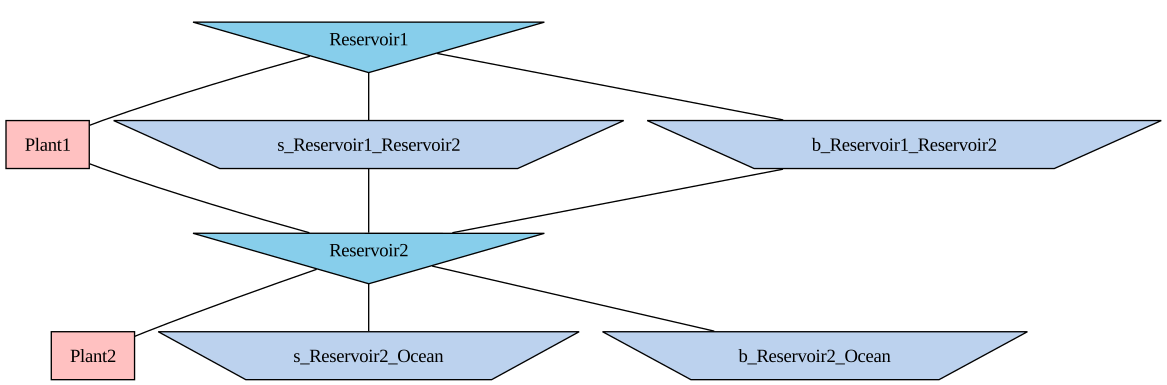
After adding the objects and setting their input attributes, we need to connect them together in order for the model to know which parts that can interact with each other. This means for instance that we need to connect a certain reservoir to a certain plant. In this example, Reservoir1 should connect to Plant1, Plant1 should then further be connected to Reservoir2, whereas Reservoir2 again connects to Plant2. Additionally, we need to connect the rivers to act as spillways and bypasses. Unlike the connections between the generators and the plants we made earlier, the topological connections are directional. This means that connecting a reservoir to a plant is different to connecting a plant to a reservoir:
# Connecting Reservoir1 to Plant1
rsv1.connect_to(plant1)

# Connecting Reservoir1 to the bypass between Reservoir1 and Reservoir2
rsv1.connect_to(b_rsv1_rsv2)

# Connecting Reservoir 1 to the spillway between Reservoir1 and Reservoir2
rsv1.connect_to(s_rsv1_rsv2)

# Connecting Plant1 to Reservoir2
plant1.connect_to(rsv2)

# Connecting the bypass between Reservoir1 and Reservoir2 to Reservoir2
b_rsv1_rsv2.connect_to(rsv2)

# Connecting the spillway between Reservoir1 and Reservoir2 to Reservoir2
s_rsv1_rsv2.connect_to(rsv2)

# Connecting Reservoir2 to Plant 2
rsv2.connect_to(plant2)

# Connecting Reservoir2 to the bypass between Reservoir2 and Ocean
rsv2.connect_to(b_rsv2_ocean)

# Connecting Reservoir2 to the spillway between Reservoir2 and Ocean
rsv2.connect_to(s_rsv2_ocean)
We can then verify if the topology is correctly set up, by graphing out the topology tree.
# Print out the topology
dot = shop.model.build_connection_tree()
display(dot)
Adding a market and a load#
Lastly, we need to add a market and/or a load for the model to optimize against, with certain parameters. This gives SHOP the solution space it needs to make its decisions on where and when to produce or not, while maximizing profit and fulfilling load requirements. The busbar object should be used with the load attribute to set a load for the whole system.
# Adding a market named "Day_ahead"
shop.model.market.add_object('Day_ahead')

# Get the object reference to the market Day_ahead since we "forgot" to do it above
da = shop.model.market.Day_ahead

# Setting a sale price to the market, which is the income value (in monetary units) per produced MW
da.sale_price.set(pd.DataFrame([32.992,31.122,29.312,28.072,30.012,33.362,42.682,74.822,77.732,62.332,55.892,46.962,42.582,40.942,39.212,39.142,41.672,46.922,37.102,32.992,31.272,29.752,28.782,28.082,27.242,26.622,25.732,25.392,25.992,27.402,28.942,32.182,33.082,32.342,30.912,30.162,30.062,29.562,29.462,29.512,29.672,30.072,29.552,28.862,28.412,28.072,27.162,25.502,26.192,25.222,24.052,23.892,23.682,26.092,28.202,30.902,31.572,31.462,31.172,30.912,30.572,30.602,30.632,31.062,32.082,36.262,34.472,32.182,31.492,30.732,29.712,28.982],
                               index=[starttime + pd.Timedelta(hours=i) for i in range(0,72)]))

# Setting a buy price to the market, which is the cost to buy production in the market (in monetary units) in stead of producing it yourself per MW. This is normally used when you have a load to cover or if you have pumps
da.buy_price.set(da.sale_price.get()+0.002)

# Setting the amount of volume able to buy in the market in MW
da.max_buy.set(pd.Series([9999], [starttime]))

# Setting the amount of volume able to sell (produce) in the market in MW
da.max_sale.set(pd.Series([9999], [starttime]))

# Adding the busbar object with the load
busbar = shop.model.busbar.add_object("system_bus")

# Setting the load that needs to be fullfilled, either by power production or by buying from the market, depending on the above parameters
busbar.load.set(pd.Series([0], [starttime]))

# Connect the busbar and market objects (bi-directional connection)
busbar.connect_to(da)
It is possible to model multiple busbar and market objects at the same time. In such cases, the units coupled to each busbar should be connected to the busbar with a connection statement. This is not necessary if only a single busbar exists in the SHOP model, as all units are assumed to be connected to it.
Now we can compare the market price to the (constant) water value of the reservoirs. Water value descriptions are usually more complex, depending on reservoir levels and/or other reservoirs:
# Plot market price and water value of reservoirs
spot_price=shop.model.market.Day_ahead.sale_price.get()

fig = go.Figure()
colorscale = px.colors.sequential.RdBu_r
color = 1
fig.add_trace(go.Scatter(x=spot_price.index, marker_color = colorscale[color], y=spot_price.values, name="Market price"))

for rsv in shop.model.reservoir:
    color+=1
    end_water_value=rsv.energy_value_input.get()
    water_value=pd.Series([end_water_value]*len(spot_price),index=spot_price.index)
    curve_name="Water value of "+rsv.get_name()
    fig.add_trace(go.Scatter(x=water_value.index, y=water_value.values, marker_color = colorscale[color], name=curve_name, line=dict(dash="dot")))

fig.update_layout(title="<b>Market price and water value of reservoirs</b>", xaxis_title="<b>Time</b> (Hour)", yaxis_title="<b>Price</b> (€/MWh)")

fig.show()
Running SHOP#
Once the model is fully defined, we can prepare for a call to the optimizer. It is possible to define certain criteria depending on the solver used, if not, default values will be effective.
In order to find an optimal solution, it is normal to run SHOP with multiple iterations, both full and incremental. Full iterations are used to decide the unit commitment decision of all generators and pumps in the system, which means that binary variables could be used if we had defined a mip_flag. When switching to incremental iterations, the unit commitment decisions are locked to whatever their values were in the last iteration. This means that binary variables for the on/off status are no longer needed in incremental iterations, and therefore they are likely faster:
# Setting a full flag, telling SHOP the upcomming iterations should be used to decide unit commitment
shop.set_code('full', [])

# Starting SHOP and running five (full) iterations
shop.start_sim([], 5)

# Setting an incremental flag, telling SHOP the next iterations should be with the fixed unit commitment dcisions from the final full iteration
shop.set_code('incremental', [])

# Running three more (incremental) iterations
shop.start_sim([], 3)
Results#
After the optimization has completed, we can review the result from SHOP by plotting the graphs we want.
# Plotting price vs. production

# Defining a plot instance
fig = go.Figure()
colorscale = px.colors.sequential.RdBu_r
# Preparing for secondary y axis by calling make_subplots function
fig = make_subplots(specs=[[{"secondary_y": True}]])
# Adding plant production as traces of bar type
fig.add_trace(go.Bar(x=shop.model.plant.Plant1.production.get().index, y=shop.model.plant.Plant1.production.get().values, name="P1", marker_color=colorscale[1]))
fig.add_trace(go.Bar(x=shop.model.plant.Plant2.production.get().index, y=shop.model.plant.Plant2.production.get().values, name="P2", marker_color=colorscale[2]))
# Stacking bars
fig.update_layout(barmode='stack')
# Adding price as trace of scatter type
fig.add_trace(go.Scatter(x=shop.model.market.Day_ahead.sale_price.get().index, y=shop.model.market.Day_ahead.sale_price.get().values, name="Price", line_color='black'),secondary_y=True)
# Updating titles
fig.update_layout(title_text="Price vs. production")
fig.update_yaxes(title_text="<b>Production</b> [MWh]", secondary_y=False)
fig.update_yaxes(title_text="<b>Price</b> [EUR/MWh]", secondary_y=True)
fig.update_xaxes(title_text="<b>Time</b> [Hours]")
# Show plot
fig.show()
# Plotting discharge and production results from Plant 1

# Retrieving discharge results on generators
G1_discharge=shop.model.generator.Plant1_Generator1.discharge.get()
G2_discharge=shop.model.generator.Plant1_Generator2.discharge.get()

# Retrieving production results on generators
G1_production=shop.model.generator.Plant1_Generator1.production.get()
G2_production=shop.model.generator.Plant1_Generator2.production.get()

# Preparing for secondary y axis by calling make_subplots function
coloraxis = px.colors.sequential.RdBu_r
#coloraxis=["rgb(0, 200, 30)","rgb(0, 200, 60)","rgb(0, 200, 90)","rgb(0, 200, 120)","rgb(0, 200, 150)","rgb(0, 200, 180)","rgb(0, 200, 210)","rgb(0, 200, 255)"]
#print(coloraxis)
fig = make_subplots(specs=[[{"secondary_y": True}]])
fig.add_trace(go.Bar(x=G1_discharge.index, y=G1_discharge.values, name="G1 Discharge", marker_color=coloraxis[1]), secondary_y=False)
fig.add_trace(go.Bar(x=G2_discharge.index, y=G2_discharge.values, name="G2 Discharge", marker_color=coloraxis[2]), secondary_y=False)
fig.add_trace(go.Scatter(x=G1_production.index, y=G1_production.values, name="G1 production", marker_color=coloraxis[3]), secondary_y=True)
fig.add_trace(go.Scatter(x=G2_production.index, y=G2_production.values, name="G2 production", marker_color=coloraxis[4]), secondary_y=True)
fig.update_layout(title_text="<b>Unit discharge and production in Plant1</b>", barmode="stack")
fig.update_xaxes(title_text="<b>Time</b> (Hour)")
fig.update_yaxes(title_text="<b>Discharge</b> (m<sup>3</sup>/s)", secondary_y=False, range=[0, 120], tick0=20, dtick=20)
fig.update_yaxes(title_text="<b>Production</b> (MW)", secondary_y=True, range=[0, 240], tick0=40, dtick=40)

fig.show()
# Plotting discharge and production results from Plant 2

# Retrieving discharge results on generators
G1_discharge=shop.model.generator.Plant2_Generator1.discharge.get()
G2_discharge=shop.model.generator.Plant2_Generator2.discharge.get()
G3_discharge=shop.model.generator.Plant2_Generator3.discharge.get()
G4_discharge=shop.model.generator.Plant2_Generator4.discharge.get()

# Retrieving discharge results on generators
G1_production=shop.model.generator.Plant2_Generator1.production.get()
G2_production=shop.model.generator.Plant2_Generator2.production.get()
G3_production=shop.model.generator.Plant2_Generator3.production.get()
G4_production=shop.model.generator.Plant2_Generator4.production.get()

fig = make_subplots(specs=[[{"secondary_y": True}]])
colorscale = px.colors.sequential.RdBu_r
fig.add_trace(go.Bar(x=G1_discharge.index, y=G1_discharge.values, name="G1 Discharge", marker_color=colorscale[1]), secondary_y=False)
fig.add_trace(go.Bar(x=G2_discharge.index, y=G2_discharge.values, name="G2 Discharge", marker_color=colorscale[2]), secondary_y=False)
fig.add_trace(go.Bar(x=G3_discharge.index, y=G3_discharge.values, name="G3 Discharge", marker_color=colorscale[3]), secondary_y=False)
fig.add_trace(go.Bar(x=G4_discharge.index, y=G4_discharge.values, name="G4 Discharge", marker_color=colorscale[4]), secondary_y=False)
fig.add_trace(go.Scatter(x=G1_production.index, y=G1_production.values, name="G1 production", marker_color=colorscale[5]), secondary_y=True)
fig.add_trace(go.Scatter(x=G2_production.index, y=G2_production.values, name="G2 production", marker_color=colorscale[6]), secondary_y=True)
fig.add_trace(go.Scatter(x=G3_production.index, y=G3_production.values, name="G3 production", marker_color=colorscale[7]), secondary_y=True)
fig.add_trace(go.Scatter(x=G4_production.index, y=G4_production.values, name="G4 production", marker_color=colorscale[8]), secondary_y=True)
fig.update_layout(title_text="<b>Unit discharge and production in Plant2</b>", barmode="stack")
fig.update_xaxes(title_text="<b>Time</b> (Hour)")
fig.update_yaxes(title_text="<b>Discharge</b> (m<sup>3</sup>/s)", secondary_y=False, range=[0, 540], tick0=60, dtick=60)
fig.update_yaxes(title_text="<b>Production</b> (MW)", secondary_y=True, range=[0, 360], tick0=40, dtick=40)
fig.show()
# Plotting reservoir trajectories
water_storage_rsv1=shop.model.reservoir.Reservoir1.storage.get()
water_storage_rsv2=shop.model.reservoir.Reservoir2.storage.get()
fig = go.Figure()
colorscale = px.colors.sequential.RdBu_r
fig.add_trace(go.Scatter(x=water_storage_rsv1.index, y=water_storage_rsv1.values, name="Reservoir1 storage", marker_color=colorscale[1]))
fig.add_trace(go.Scatter(x=water_storage_rsv2.index, y=water_storage_rsv2.values, name="Reservoir2 storage", marker_color=colorscale[2]))
fig.update_layout(title="<b>Reservoir trajectories </b>", xaxis_title="<b>Time</b> (Hour)", yaxis_title="<b>Volume</b> (Mm<sup>3</sup>)")
fig.show()
Lastly, we can inspect the optimized objective function and its sub-components:
print("Income from fixed load:",shop.model.objective.scen_1.load_value.get())
print("Sum of selling vs. buying in the market:", shop.model.objective.scen_1.market_sale_buy.get())
print("End reservoir value:", shop.model.objective.scen_1.rsv_end_value.get())
print("Sum of startup and shutdown costs:", shop.model.objective.scen_1.start_stop_costs.get())
print("Sum of load penalties:", shop.model.objective.scen_1.load_penalty.get())
print("Total objective value:", shop.model.objective.scen_1.total.get())
print("Grand total objective value (excluding major penalties):", shop.model.objective.scen_1.grand_total.get())
Income from fixed load: -0.0
Sum of selling vs. buying in the market: -921909.039207985
End reservoir value: -294831.30547263724
Sum of startup and shutdown costs: 6400.0
Sum of load penalties: 0.0
Total objective value: -1210340.3446806222
Grand total objective value (excluding major penalties): -1210340.3446806222